Everyone wants the best system with the latest and greatest parts. The Nvidia 3000 series GPUs, AMD Ryzen or Intel i9 CPUs, fastest Storage Drives and more. Some people neglect to realize these things can take a lot of power to run. This in turn, generates a lot of heat within your system. To run optimal, you need the best cooling systems for your system. We’ll be discussing the cooling options, some best practices and factors in keeping your system cool.
Cooling Options
So far, there are two types of cooling systems you can place in your custom built machine: Fans and Liquid Coolers.
Fans

Fans are the original and more common way to keep your system cool. Fans generally come in sizes from 80mm up to 200mm. You’ll always have them over your CPU and GPU at least. Cases tend to have fans on them as well. Some of the case fans are situated to take air and and push some out. GPUs and CPUs come with stock heatsinks. The job of the heatsinks are to absorb heat from component it’s attached to. GPU and CPU fans always should push air out and away from it’s components’ heatsink.
They’re normally cheaper than the alternative liquid cooling method. A single fan can cost roughly between $15-$90. The premium priced ones have the best airflow possible, run the quietest and fastest. They may also have features like RGB lights for aesthetics. Generally, they may be made of a plastic material, but there are some made of metal with mechanisms allowing fans to spin fast and quiet.
Liquid Cooling/AIO Cooler

Liquid Cooling is the other kind of cooling system to use keep your system in optimal temperatures. It normally consists of tubing, a radiator, fan(s), cooling block, and liquid. These setups are much more expensive than a strict fan cooling system. They are more effective, but generally just more aesthetically appealing than fans alone. The trend lately is everything RGB, so you’ll more than likely have that feature built into the water cooling system.
Traditional liquid coolers are intricate and more difficult to install than the other liquid cooling type, All-In-One or AIO coolers. Traditional ones will have a rather large tank or reservoir that will hold the liquid. You’ll then have to secure the tubes to the tank as well as the cooling block and radiator. If not done properly, leakage could occur. You’ll also have to worry about adding performance liquid as well (if desired).
The AIO or All-In-One units, which are a bit more fool proof and take up less space than the traditional liquid cooling units. There isn’t an extra tank that you have to worry about. The liquid is within the radiator. The tubes are already connected to the water block and radiator. Most AIO’s also have thermal paste applied already, so that’s one less thing to worry about. You just need to make sure the radiator dimensions and tubing can fit within your computer. The recommended mounting location of the AIO’s radiator is on the top, but some manufacturers will advise you if other locations are ok. You’ll still need to decide how you’ll want to mount the radiator and fans.
Importance of Airflow
Positive vs Negative vs Neutral Pressure
Airflow inside your computer case is an important but sometimes neglected component of keeping your computer cool. The direction of how you push the air around your components can create air pressure in your system. The three types are negative pressure, positive and neutral pressure. Positive is when all of your fan are positioned to take in air. This does not allow any air to leave the system and also prone to collect dust. Negative pressure is always pushing air out of the system, but also creating a vacuum oddly enough. The last a best way is neutral pressure. This is a balance of both air coming in and air leaving the case. This will allow fresh ambient air to enter the case and push some of the heated air out of the case, ideally lowering the system’s temperature.

In any setup you choose, (AIO cooler, Traditional, or Fan only), you’ll need to think about the airflow of the fans in your system. Positioning your fans to blow air in to your system is prescribing them as intake fans. Blowing air out makes them exhaust fans. Ideally you’ll want one side as intake, and the opposite as exhaust. The top (and bottom if available) are a bit of a dealers choice.
I generally designate the top and rear fans as exhaust. I make the front of the case are intake. If I have a bottom mounted fans, I’ll make those intake as well. This setup to me promotes cross draft and optimal airflow for my case. There may be more optimal configurations based on your case, number of fans and position options.
Fan Size
Fan sizes too play a part in keeping your system cool as well as the amount of noise you’ll hear while they’re running. Generally smaller fans will be more noisier than larger, but more air will be pushed through faster. The big thing to look at when seeing the effectiveness of a fan is look for the CFM or Cubic Feet per Minute. The higher the number, the better. To figure out how much noise a fan will generate, look at the dBA or A-weighted decibels. This is the measure of sound air makes. The lower the number, the better. It’s a personal decision as to which you prefer more, but part of the decision is decided by the case you choose as well.
Case Size
The size of your case is important as well. The smaller your case is, the less room there is to circulate air. Larger cases will have ample amount of space between most components promoting good airflow for optimal airflow in your machine. This is not to say getting a medium or small size case will not provide you decent airflow, but you will get the the best from a large case. Depending on your usage and components’ efficiency, a small case can work as well.
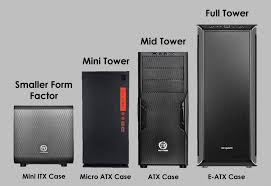
The case size also dictates the potential number of fans you can mount to your system. It is also dependent on the manufacturer and model. There’s some cases that will allow for only one or two fans, and some that will 16 or more fans on one case. Some of the cases come with stock fans, others may have no fans pre-installed, but allow you to add custom ones as you need. For example, I have a Lian Li case with that had no fans pre-installed. I manually installed six fans to promote efficient cooling. It can potentially add up to 10 fans, but I’m satisfied with the six I use currently. I use a combination of smaller 120mm fans and 140mm fans. Reference your case’s manual for potential fan configurations.
Maintenance
Cleaning
Regularly cleaning your computer prevents dust build up. Having excess amounts of dust on your computer will cause more heat to build up in your computer faster. It also has the potential to cause your system to malfunction. Here’s some Do’s and Don’ts of cleaning your PC:
It’s Good To
- Regularly wipe your case with a clean cloth to rid dirt
- Clean the inside of your computer monthly
- Be grounded when cleaning the inside of the case
- Utilize Microfiber cloths
- Power off and unplug your computer when cleaning
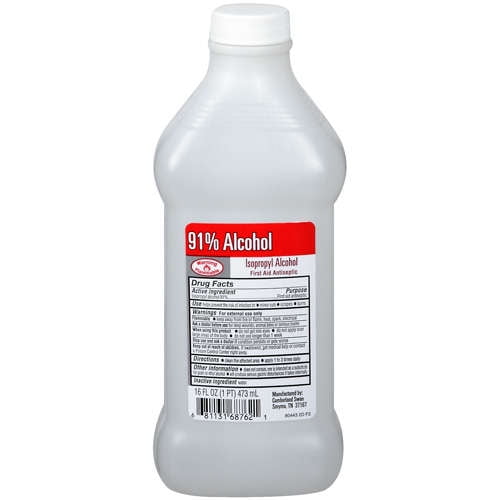
- Clean with Isopropyl Alcohol (preferably 91% or better).
It’s Bad To
- Use household cleaning agents on components.
- Power on computer while wet.
- Cleaning on carpet, which could cause static electricity.
- Aggressively handle components, potentially breaking them.
- Don’t vacuum the inside of your computer.
- Smoke near computer
- Don’t use alcoholic beverages in lieu of Isopropyl Alcohol
If you do use water on anything, be sure it completely dries, but using anything other than the Isopropyl Alcohol is definitely not advised on components.
Troubleshooting Cooling

You may have a faulty fan or water cooler pump. Here’s some issues, ways to troubleshoot and potential solution
- Fan(s) not spinning
- Troubleshoot:
- Check if fan’s power cable is properly secured to motherboard. If not reseat cable or try another system fan port.
- If utilizing fan management software, don’t
- Troubleshoot:
- System’s temperature steadily rising and eventually shuts off
- Troubleshoot
- Check all fans and/or water cooling components are secured and properly powered
- Check if damage to fans, or water cooling components like tubing cooling block or radiator
- Check if power and/or data cables are properly connected
- If fan or cooler management software installed, verify components are recognized and operational.
- If using water cooler, make sure the cooling block over the CPU is connected to the CPU_FAN port. If there’s another AIO pump cable connect it to the CPU_OPT or AIO_FAN port. Verify with manual for details.
- Make sure your components are compatible with Motherboard
- Troubleshoot
Reapplying Thermal Paste
Thermal paste is a paste compound that is spread on top of a CPU that in between the heatsink or cooling block and the CPU. The paste helps dissipate the heat generated from the CPU’s usage. There are several kinds of thermal paste:
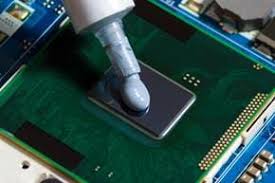
- Metal-based Pastes.
- Ceramic-based Paste.
- Carbon-based and Diamond Carbon Paste.
- Liquid Metal-based Thermal Paste.
For beginners, it’s recommended to use Ceramic-based. This is easier to apply and more forgiving in terms of dangers in applying it incorrectly. It’s generally cheaper than metallic and liquid metal paste.
The metallic paste is very conductive. If it gets on other parts, it could cause short circuit or voltage applied where it shouldn’t be. It’s also more expensive and less is needed. But you must be careful how much is applied to the CPU. Follow the instructions provided in the manual of the thermal paste for best application.

After a period of time, the heat constantly absorbed by the paste wears down. A general rule is that the paste should be reapplied roughly every two years. It could be more, it could be less, it all depends on the quality of the paste and guidelines set with the accompanying manual. I’ve had builds that lasted over a decade without new paste. Though, unused paste generally will expire within one to three years.
Best Practices

- Keep your room at room temperature or cooler (72° F)
- Clean your PC regularly, at least monthly.
- Provide roughly 1/2 to two inches of space between your PC and anything that could block ventilation.
- Create neutral pressure with your fans for optimal airflow.
- You want to keep your computer internal temp between 40°C and 60°C idle. Anything over 75°C constantly is not good for the system.
Conclusion
Keeping your system cool can be both efficient and aesthetically appealing if you desire so. There are many ways to customize if you want or you can get simple decent cooling unit. Fans are cheaper than AIO, but AIOs can be more efficient. You also shouldn’t forget about your fan configurations, case size and cleaning your PC. Let me know if there’s other ways I may have missed.
Cordell Kennerly

Cordell Kennerly has worked in various capacities of Software Development and Engineering for over 10 years. In parallel with gaining experience in software development, he has experience with RDBMS and No-SQL databases, and software deployment, PC building and Security
0 thoughts on “The Best Way To Keep Your System Cool”